
Maker Station equipment
Silhouette
cutter
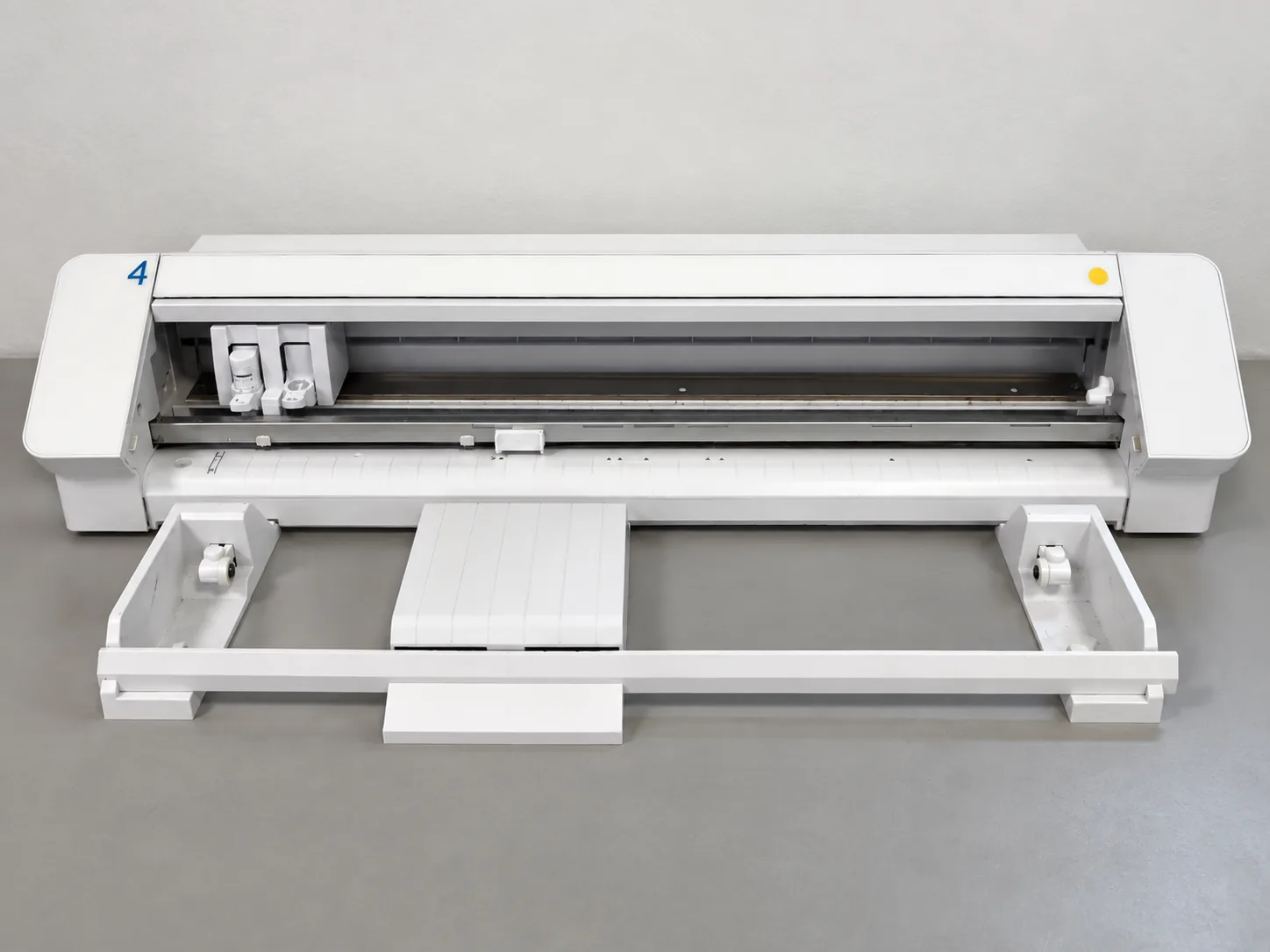
Desktop blade cutters for paper, card, vinyl, heat-transfer material and other thin craft materials. The station has more than one, including a wide-format machine for work too big for the standard machine.
Training and hours
Laser cutting and Silhouette cutting are taught together. Complete the relevant workshop route before booking the machine.
The Silhouette is covered in the same route as the laser cutter. View the workshop route.
Once you have completed every session in the route you can book the machine through SISO and use it for your own projects.
The Silhouette cutters are used during staffed hours.
Which machine to use
The station has more than one Silhouette. They are driven from the same software and share the same workflow, so the choice comes down to how wide the work is and which machine is free.
- Standard machine. The everyday machine for vinyl, card and heat-transfer material at normal sheet widths.
- Wide-format machine. Use it when the work is too wide for a standard machine, such as large lettering or a long run of vinyl from a roll.
Check the maximum width with staff before designing to the limit of a machine, and set the page size in Silhouette Studio to match the machine you have booked. A file laid out for the wide machine will not cut on a standard one.
Workflow
- Prepare the design. Create or import the cut paths in Silhouette Studio and confirm the page and material size.
- Choose the setup. Select the blade, material preset and the mat or matless setup demonstrated during training.
- Prepare the material. Place it squarely on the appropriate cutting mat, or prepare supported backed material for matless loading. Smooth out wrinkles or raised edges and keep the load area clear.
- Load and check. Load the mat or material in the correct orientation, confirm the cut lines in the Send panel and check that the blade selection and setting are correct.
- Run a test cut. Check that the cut passes through the intended layer without cutting unnecessarily into the backing or mat.
- Send and supervise. Start the full cut and remain nearby so a shifting sheet, snag or incorrect cut can be stopped.
- Unload and finish. Unload only after the machine has stopped, then remove the material carefully and weed it with the appropriate tool.
Cut paths and Print & Cut
Vector cutting
Vector cutting follows the paths in the file. Work at real-world size and keep paths closed.
Print & Cut
Enable registration marks in Silhouette Studio, arrange the artwork and cut lines inside the permitted area, and print the sheet on a separate printer without changing its scale. Load the printed sheet into the Silhouette with every registration mark clear and unobstructed. The cutter reads those marks before cutting around the printed artwork.
File formats
Silhouette Studio files are the native format. DXF is a common vector exchange format; SVG import depends on the Silhouette Studio edition installed. PNG and JPG can be used for the printed part of a Print & Cut job. Confirm that imported paths and dimensions are correct before cutting.
Materials
The Silhouette cuts paper, card, vinyl, heat-transfer material and similar thin craft materials.
- Match blade depth, force and the mat or matless setup to the material, using the settings covered in training.
- Treat software presets as starting points and confirm the result with a test cut.
- When a cutting mat is required, use one appropriate to the material and replace it when it no longer holds the sheet flat.
- Keep the blade housing clean and check for trapped offcuts.
Safety
- Keep hands, hair, jewellery and loose clothing clear of the moving carriage and rollers.
- Do not adjust the blade, material or mat while the machine is moving.
- Use the correct tool for weeding or lifting material and cover or store sharp tools after use.
- Stop the job if the mat shifts, material lifts or the blade snags. Do not reach into the machine to correct it while it is running.
- Ask staff before cutting an unfamiliar, coated or adhesive-backed material.
Vector resources
Vector software, drawing tools, template libraries and generators shared with the laser cutter workflow.
Silhouette Studio and official design resources →
Frequently asked questions
How do I maintain the cutting mats?
Keep the mat clean and free of offcuts, and store it with its backing sheet. Replace it once it no longer holds material flat, because a loose sheet will shift mid-cut.