
Maker Station equipment
Laser
cutter
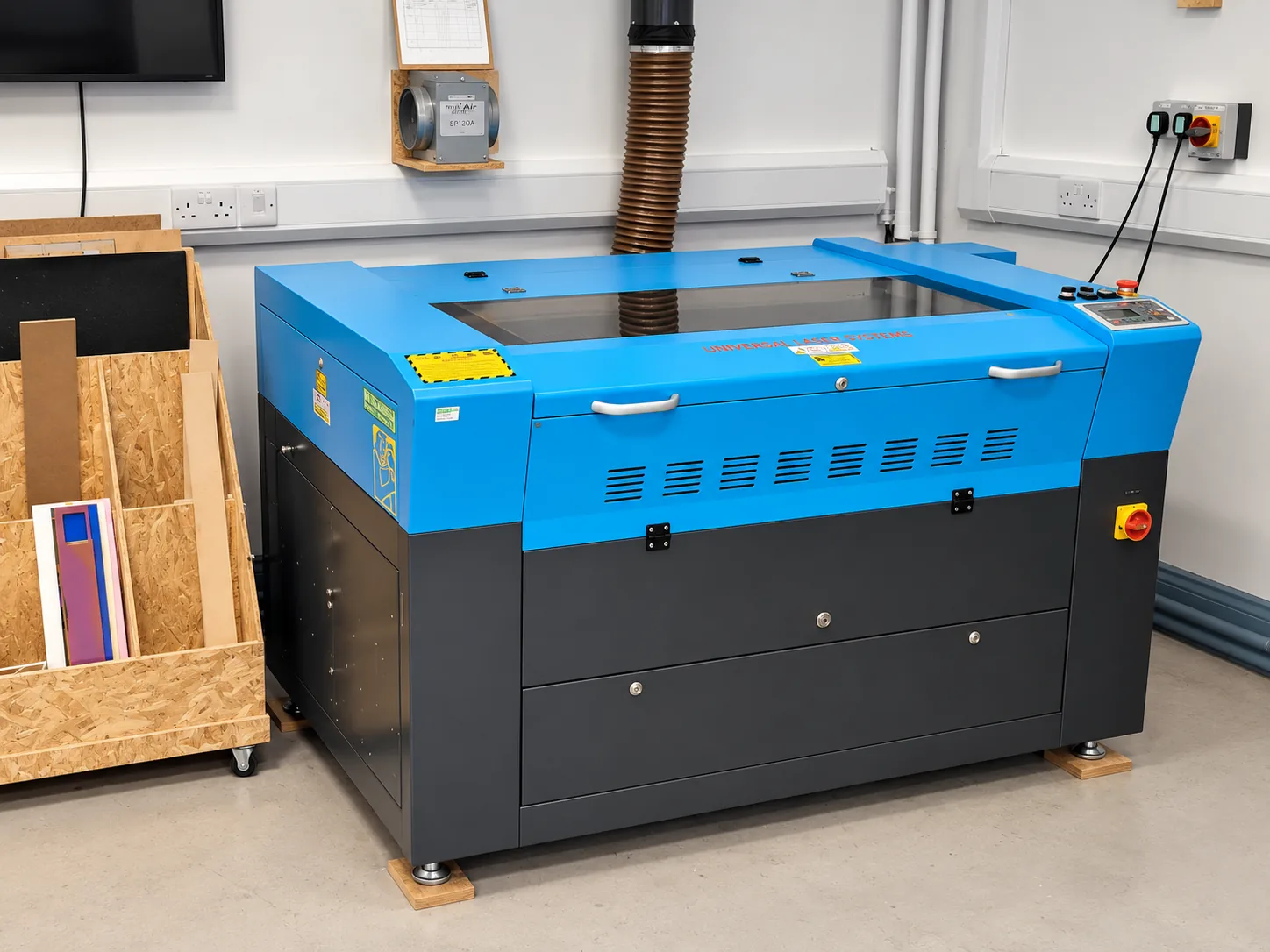
A 120 W CO2 laser that follows vector paths to cut, score and engrave approved sheet materials.
Training and hours
Laser cutting and Silhouette cutting are taught together. Complete the relevant workshop route before booking the machine.
Once you have completed every session in the route you can book the machine through SISO and use it for your own projects.
The laser cutter is only used during staffed hours, and it is the machine most often reserved for classes and training, so check availability in SISO before planning a deadline.
The machine is a 120 W CO2 laser.
Workflow
- Check the job. Confirm dimensions, material, operation order, and that duplicate paths have been removed.
- Place the material. Use only an approved sheet that sits flat and fits within the working area.
- Import into LightBurn. Check scale and assign each colour or layer to cut, score or engrave.
- Set up with staff. Use the local focus, origin, frame and extraction procedure taught for this machine.
- Run a small test. Use the approved local starting settings, then adjust only with staff guidance.
- Frame the full job. Make sure the complete path stays on the material and clear of clamps or obstructions.
- Run and supervise. Remain at the machine with a clear view of the cutting point.
- Finish safely. Keep the lid closed and extraction running for at least one full minute after the laser stops, or until the smoke has cleared if that takes longer. Check for heat or embers, remove waste, and follow the local shutdown checklist.
Files and file formats
Create the design in Inkscape, Adobe Illustrator, or any other software that can export accurate vector files. The machine is driven from LightBurn on the Maker Station computer.
Cut and score
Use vector paths. Close intended outlines, convert text to paths, remove overlaps, and work at real-world size.
Vector setup
| Operation | Artwork | Colour |
|---|---|---|
| Cut | 0.01 mm vector stroke | RGB red |
| Score | 0.01 mm vector stroke | RGB blue |
| Engrave | Filled shape or suitable raster image | Black |
- Use a minimum feature size of 0.5 mm for cutting.
- Use a minimum feature size of 0.3 mm for engraving.
- Allow approximately 0.1–0.2 mm for kerf where fit matters.
- Use engraved text at 8 pt or larger and convert it to outlines.
Engrave
Use vectors or suitable raster images. Check image resolution and engraving mode before sending the job.
| Format | Type | Use |
|---|---|---|
| SVG | Vector | Best for cutting — scalable, no quality loss |
| DXF | Vector / CAD | Standard for CAD-originated designs |
| AI | Vector | Adobe Illustrator files |
| Vector / mixed | Accepted by most laser software | |
| HPGL / PLT | Vector / plotter | Older plotter format, still supported |
| PNG / JPEG / BMP / TIFF | Raster | Engraving and rastering only — not for cutting paths |
- Use millimetres and verify one known dimension after import.
- Convert fonts to outlines so the design does not depend on installed typefaces.
- Remove hidden geometry, clipping masks, duplicate lines and unnecessary off-canvas objects.
Materials and thickness
Use only materials explicitly approved for the Maker Station laser. Supplier labels and a safety data sheet help identify a material, but do not replace local approval.
For an approved material, select the matching material, thickness and operation in the LightBurn Material Library. It provides the station's starting speed and power settings. Compare the result with the labelled samples at the station and run a small test before the full job.
On this machine, acrylic cuts well up to about 12 mm and wood up to about 10 mm. Maximum practical thickness varies with the exact material, so check the LightBurn library and station samples rather than estimating settings.
Before using a new material
- Confirm the full material name, composition, coating and adhesive with staff.
- Provide the supplier label and safety data sheet where available.
- If the material can release flammable, toxic or corrosive gases, use another process.
- If anyone near the laser feels unwell, stop immediately, leave the area and alert staff.
Material reference
| Material | Cut | Engrave | Notes |
|---|---|---|---|
| Cardboard | Yes | Yes | High speed, medium power. Good ventilation essential. Thicker cardboard loses focus deeper in. |
| Cork | Yes | Yes | Low smoke. Adjust power for shading from light brown to deep black. |
| Natural wood (balsa, pine, oak) | Yes | Yes | Cuts well up to about 10 mm. Softer woods need less power. High-resin woods catch fire more easily. Watch for knots. |
| Laser-grade plywood | Yes | Yes | Use station stock or a staff-approved product with known adhesive. Ordinary construction plywood can contain unsuitable glues and voids. |
| Laser-grade MDF | Yes | Yes | Use station stock or a staff-approved low-formaldehyde product. Do not assume general-purpose MDF is approved. |
| Confirmed natural-fibre fabric (cotton, linen, silk or wool) | Yes | Yes | Blends, coatings and backing layers change the material. Felt and fleece must be identified because they are often synthetic. |
| Vegetable-tanned natural leather | Ask staff | Ask staff | Must be confirmed chromium-free. Do not use chrome-tanned leather, imitation leather or material with an unknown tanning process. |
| Nylon, spandex | Avoid | Avoid | Synthetic fibres are hazardous when cut. |
| Acrylic / PMMA (cast) | Yes | Yes | Frosted engraving. Fire hazard, never leave unattended. Cuts well up to about 12 mm. |
| Acrylic / PMMA (extruded) | Yes | Less ideal | Polished cut edges but less contrast when engraved. |
| Polypropylene (sheet, not foam) | Caution | Less ideal | Low melting point and thin pieces may warp. PP foam is a significant fire hazard. |
| Coroplast (corrugated PP) | Caution | Difficult | Large surface area increases fire risk. Fluted sections need more power than the face sheets. |
| Delrin / acetal | Caution | Caution | Clean cuts, low contrast. Releases formaldehyde, so strong ventilation is required. |
| Polyimide / Kapton | Limited | Engrave only | Burns and chars when cut. Engraving gives black soot marks with good contrast. |
| Natural rubber or silicone sheet | Ask staff | Ask staff | Only a product with confirmed composition can be considered. Neoprene and unidentified rubber are prohibited. |
| Polycarbonate (under 1 mm) | Thin only | Poor results | Absorbs infrared strongly and overheats. Fire hazard, and edges discolour. |
| Anodised aluminium | No cutting | Engrave only | Etches the oxide layer cleanly. Abrasive particles mean the machine must be cleaned after use. |
| Bare metals | Not recommended | Limited | Highly reflective. A marking compound applied to the surface enables marking. |
| Glass | Very limited | Engrave only | Frosted appearance from microfractures. Fine detail is difficult to control. |
| Ceramic tile | No | Limited | Can be marked if coated with glaze or paint. Porous ceramics must be completely dry. |
| Stone (marble, granite, slate) | No | Engrave only | Dark polished stone engraves with good contrast. Must be completely dry. |
This table is a general reference, not an approval list. Local approval, the LightBurn Material Library and the labelled station samples determine what may be processed and which settings to use. It condenses the station's detailed internal materials reference; do not treat it as a replacement for a safety data sheet.
Safety
Never leave a running laser unattended
Watch the cutting point throughout the job. If material flames, smoke increases rapidly, extraction fails, or the machine behaves unexpectedly, pause or stop the job using the procedure taught in training and alert staff.
Before every job
- Confirm the material identity and approval with Maker Station staff.
- Remove protective films only as directed and check for coatings, adhesives or unknown layers.
- Check that the bed is clear, the material lies flat, and extraction is operating.
- Know the location of the emergency stop and fire response equipment.
Do not improvise a material test by burning it. Material identification and approval must happen before it enters the machine.
Never process these materials
Toxic, corrosive or extreme fire risk
- PVC and vinyl, including many imitation leathers. PVC releases toxic, corrosive chlorine-containing gases that harm people and damage the machine.
- Neoprene (polychloroprene) and other chlorine-containing rubber. These can release toxic, corrosive gases. Unidentified rubber is also prohibited.
- PTFE, commonly sold as Teflon, and other fluorine-containing materials. These release dangerous decomposition products.
- Chrome-tanned or chromium-containing leather. Chromium is part of the tanning treatment, not a type of leather, and cannot be identified by appearance alone.
- Carbon-fibre composites. This includes cured carbon-fibre sheet and carbon fabric pre-impregnated with epoxy resin; processing releases hazardous dust and decomposition products.
- PVB (polyvinyl butyral). This plastic is commonly used as the clear interlayer in laminated safety glass. It is not approved because laser processing can release harmful decomposition products.
- Beryllium oxide. This specialist ceramic is found in some electronic components and can release highly toxic dust.
- Polystyrene and Styrofoam. Foam packaging and model-making foam can ignite rapidly and release hazardous smoke.
- Epoxy and phenolic resin composites. This includes many circuit boards, fibreglass sheets and resin-laminated panels.
- ABS, nylon and polyurethane. These plastics and foams can release acutely toxic decomposition products.
- Polycarbonate thicker than 1 mm. It absorbs the CO2 laser strongly, overheats and gives poor results.
- Any unidentified plastic, foam, coating or adhesive. If its complete composition cannot be confirmed, it must not enter the machine.
Troubleshooting
Why will the laser not fire?
Check that the lid is fully closed for the safety interlock, that the machine is powered on and not paused, that laser power in LightBurn is above zero, and that the file was sent correctly. Do not bypass an interlock or repeatedly restart the job.
Why did the cut not go through?
Do not immediately increase power or repeat the full job. Pause, check focus and material flatness, then run a small supervised test. Material variation or dirty optics may be involved.
What should I do if the material flames or smokes heavily?
Stop the job using the trained procedure and alert staff. Keep the lid closed unless the local emergency procedure requires otherwise.
Why is the imported design the wrong size?
Undo the import, confirm document units and export scale, then re-import and verify a known dimension. Do not scale by eye.
Resources
Nesting tools, box and pattern generators, vector software, template libraries and stencil fonts.
Frequently asked questions
Can I bring my own material?
Ask staff before bringing or purchasing stock. A booking does not approve a material, and unidentified material cannot be cut.
Who do I ask about materials for laser cutting?
Use the laser enquiry link. Bring the supplier name and a safety data sheet if you have one.